Wednesday, February 27, 2019

How to Download Kik App and Messages on PC 2019

How to Download Kik App and Messages on PC 2019

Since its release back in 2010, the Kik messaging application has been a popular choice for both iOS and Android users. Unlike other messaging services, Kik allows mobile users to remain anonymous by not requiring them to provide a legitimate phone number. Another great aspect, though, is that users can access their Kik profile on a PC. Here's how users can download and use Kik messages on PC.


Use Kik on Computer by Chrome Extension


Download Kik App on Computer using BlueStacks


Download Kik App from Windows Store


Download Kik Messages from iPhone to PC
1. Use Kik on Computer by Chrome Extension

If you're someone that uses Google Chrome a lot, then you may benefit from installing the Kik chrome extension. All you need to do is open up the Chrome browser and follow the steps as below:

Step 1. Open Chrome Web Store(https://chrome.google.com/webstore/category/extensions) and type in the search bar 'Kik Messenger'.

Step 2. The correct one should be at the top of the results, and you can click 'ADD TO CHROME'.

Step 3. Select 'Add Extension' to install. Then you can log in and chat with your friends on Kik.


2. Download Kik App on Computer using BlueStacks

The Kik app is only available to iOS and Android users, which means the PC version is also only designed for those users. Therefore, a great way to get the full Kik app on your PC is to download some external software which imitates those operating systems, such as BlueStacks. BlueStacks is a piece of software that emulates a mobile device, and essentially turns your PC into an iOS or Android device so you can run mobile apps. This is how you do it:

Step 1. Google BlueStacks Emulator, and download the software from their official website.

Step 2. Once the download is complete, open the .EXE file to kick start the installation.

Step 3. When that's finished, type 'Kik for PC' or 'KIK Messenger' in the search bar within BlueStacks.Sponsor ads:View & Share Saved WiFi Password on iPhone Xs Max/X/8/7/6s

Step 4. Click on Install and then start using Kik on your PC.


3. Download Kik App from Windows Store

Well, this method could be controversial because it doesn't work for all users. We have tested this but it only works for several Windows computers, which probably is relevant with Windows version. But if it works, then it is the simplest way - it can be completed in just a couple of clicks from the start menu from your Windows computer. So, that's worth a try. See how to do this:

Step 1. Bring up the start menu, type in 'store' in the search bar or just find the icon.

Step 2. Once you're in the Microsoft Store, you can again use the search bar, to type in 'Kik Messenger'.

Step 3. When the correct one pops up, click on it to commence the download.


However, if you just need your Kik messages and you're the type of person that cherishes simplicity and don't want to go through the above methods, why not let the iMyFone D-Port Pro tool retrieve your Kik messages for you?

Sponsor ads:

Gihosoft Free iPhone Data Recovery:https://www.gihosoft.com/iphone-data-recovery-free.html

Gihosoft iPhone Data Recovery Free

Free iPhone Data Recovery Software for Windows/Mac

Recover up to 12+ types of files, including contacts, SMS, photos, WhatsApp, Viber, notes, etc.

Restore lost data from iOS devices directly or from iTunes and iCloud backup

Recover iPhone data lost due to iOS upgrade/jailbreak, accidental deletion, device lost or broken

Support all the latest iPhone, iPad and iPod Touch

Both Free and Pro version.

Chuwiには、カスタマイズされたラップトップ、タブレットPC、妥協のない品質、安定性、サポート、パフォーマンスを備えたミニノート pcエクスペリエンスの世界有数のテクノロジーパートナーになることをミッションがあります。


If you lost data after you updated to a new iPhone, you can always use Gihosoft iPhone Data Recovery to get the data back from the old iPhone or backup.You may also like: iphonerecovery.com

If you use android phones, please choose Gihosoft Android Data Recovery.

With Gihosoft Android Data Recovery, no longer afraid of data loss!

Must read:Youtube video downloader for pc

Gihosoft RePicvid Free Photo Recovery Software provides a free photo recovery software for windows to help users recover the deleted or lost photo for free.

Jihosoft Android Data Recovery: the best Android Data Recovery software for Windows and Mac to recover deleted contacts, messages, photos, videos, WhatsApp and etc from Android devices.Tips:How to transfer messages from iPhone to iPhone

jihosoft Free iPhone Data Recovery

4 MP3 Music Downloader App for iPhone/iPad/iPod


1 MP3 Music Downloader App – Spotify

Spotify is the most used music downloader in the United States, and it offers a great music service and user-friendly interface. When you download Spotify for iPhone, you will notice that it groups all your music collections according to genres such as classical, rock, country, etc. If you are in search of a particular track, the search unit is always dependable, and you can stream such music online or save it for offline playback.
Features of Spotify:


It’s free of charge to download music on Spotify, but you’ll get to pay to use some of their premium music services.


It has an enormous database of songs and great son=und quality to offer.


2 Free MP3 Music Downloader App – Google Play

The Google Play app is available for iOS and Android device users. You can use it to download new and hot music tracks. However, this music service is not free, you’ll have to pay a subscription fee of $1.99 per month. If you are a subscriber of Google Play, you’ll be able to download and play music on your iOS device. But there is a free version that only allows you to stream music online.
Features of Google Play:


It offers you the most current and hot songs.


It has one of the largest libraries of songs and other media files that you can download from.


If you stop subscribing, you cannot enjoy those music again then.


3 MP3 Music Downloader App for iPhone – Tidal

The features of Tidal is close to that of Spotify but with some striking differences. The app provides some comprehensive functions such as music sharing, downloading and streaming at the subscription fee of $19.99 per month. You can save songs downloaded from Tidal on your iPhone without any hitch, and listen to such songs offline without internet connection.
Features of Tidal:


It lets you save your songs, playlists, and albums offline.


It offers one of the best sound qualities but very expensive.


If you stop subscribing, you cannot enjoy those songs then.


4 MP3 Music Downloader App for iOS Device – Apple Music

This is the native iOS music downloader for iPhone, iPad and iPod Touch. It has all the music player function needed to play music on iPhone. But it does not support the play of FLAC, WMA, WAV, and other types of music files, and goes for the subscription fee of $9.99 per month.
Features of Apple Music:


It can easily save music offline for playback.


It’s the most compatible mp3 music downloader app for iPhone, iPad and iPod touch.
Sponsor ads:Change Message/iMessage Background on iPhone with/without Jailbreak

If you stop subscribing, you cannot enjoy the music then.


You may also like:Sponsor ads:

Gihosoft Free iPhone Data Recovery:https://www.gihosoft.com/iphone-data-recovery-free.html

Gihosoft iPhone Data Recovery Free

Free iPhone Data Recovery Software for Windows/Mac

Recover up to 12+ types of files, including contacts, SMS, photos, WhatsApp, Viber, notes, etc.

Restore lost data from iOS devices directly or from iTunes and iCloud backup

Recover iPhone data lost due to iOS upgrade/jailbreak, accidental deletion, device lost or broken

Support all the latest iPhone, iPad and iPod Touch

Both Free and Pro version.

If you lost data after you updated to a new iPhone, you can always use Gihosoft iPhone Data Recovery to get the data back from the old iPhone or backup.You may also like: iphonerecovery.com

If you use android phones, please choose Gihosoft Android Data Recovery.

With Gihosoft Android Data Recovery, no longer afraid of data loss!

Must read:Youtube video downloader for pc

Gihosoft RePicvid Free Photo Recovery Software provides a free photo recovery software for windows to help users recover the deleted or lost photo for free.

Jihosoft Android Data Recovery: the best Android Data Recovery software for Windows and Mac to recover deleted contacts, messages, photos, videos, WhatsApp and etc from Android devices.Tips:How to transfer messages from iPhone to iPhone

jihosoft Free iPhone Data Recovery

Tuesday, February 26, 2019

Fix iTunes Error 27 in iTunes 2019

 Fix iTunes Error 27 in iTunes 2019
1. Remove Security Software

Sometimes iPhone restore error 27 appears due to security software. In this case, you are suggested to remove the security software temporarily. Do it and then try restoring your iPhone with iTunes. If you still receive that error message, move on to the next fix.


2. Check USB Port & USB Cable

Next thing is to examine your USB port as well as the cable while getting iTunes unknown error 27. Check if they are functioning properly. It is recommended to use an official USB cable to get the restoring process done smoothly.


3. Update iTunes

iTunes usually brings error when it is not updated. Thus, check if your system has the updated version of iTunes. If not, install the latest version now and avoid those irritating unknown errors while restoring the device.

If you are using a Windows computer, you can just click "Help" on the Menu and choose "Check for Updates". If there is a new version, you just need follow the on screen prompt to install the latest version of iTunes. If you are using Mac, you can update iTunes in App store.


4. Fix iTunes Error 27 with Third-party Tool
Sponsor ads:Transfer Calendar from Android to Android
Sponsor ads:6 Best Running Apps For iPhone & Apple Watch to Keep Your Fitness


Sponsor ads:10 Best Game Download Sites for PC & Android

How to Fix “iPad Won’t Backup” Message 2019


1. Buy More iCloud Storage to Stop the Annoying Prompt

The root of this problem is that iCloud is hungry for more space and it wants to be fed—with your money. Since you only get 5GB for free, once you go over that, you'll have to start paying. So the first and most obvious method for stopping this annoying prompt is to just buy more iCloud storage space! Hey, this wouldn't be the first time that Apple annoyed you into paying them money, would it?

Here's how to do it:

(1) On your device, go to your Settings, and then tap on your name, then iCloud, then Manage Storage (or iCloud Storage). For devices using iOS 10.2 or earlier, you just go to Settings > iCloud > Storage.

(2) Simply tap where it says Buy More Storage or tap where it says Change Storage plan and choose a different plan.

(3) Tap Buy and follow the directions on the screen.


2. Delete Unnecessary Backups on iPad

If you don't want to pay for more iCloud storage, you could also just delete a backup of your iPad, so that you could save a new one. You can simply go to your Settings > [Your Account Name] > iCloud > Storage, then tap where it says Manage Storage. From here, you can tap on your device name and then tap Delete Backup to get rid of its current backup.


3. Back Up Fewer Apps on iPad

Nowadays, you can be a bit more selective about what apps go into your backup. This only works on iOS 10.3 or later, though. Basically, what you do is that you go into your Settings and navigate to the Manage Storage screen, using the methods mentioned above, depending on your version of iOS. It is Settings > iCloud > Storage > Manage Storage on iOS 10.2 or earlier; Settings > [Your Account Name] > iCloud > Storage > Manage Storage on anything after. In iOS 11, you will have to take a step further and tap where it says Backups.Sponsor ads:Best Torrent Search Engine Sites to Find Your Favorite Torrents

After that, tap on the name of your device. Look for the heading that says Choose Data to Back Up, and de-select the apps that you don't want to back up.


Sponsor ads:

Gihosoft Free iPhone Data Recovery:https://www.gihosoft.com/iphone-data-recovery-free.html

Gihosoft iPhone Data Recovery Free

Free iPhone Data Recovery Software for Windows/Mac

Recover up to 12+ types of files, including contacts, SMS, photos, WhatsApp, Viber, notes, etc.

Restore lost data from iOS devices directly or from iTunes and iCloud backup

Recover iPhone data lost due to iOS upgrade/jailbreak, accidental deletion, device lost or broken

Support all the latest iPhone, iPad and iPod Touch

Both Free and Pro version.

If you lost data after you updated to a new iPhone, you can always use Gihosoft iPhone Data Recovery to get the data back from the old iPhone or backup.You may also like: iphonerecovery.com

If you use android phones, please choose Gihosoft Android Data Recovery.

With Gihosoft Android Data Recovery, no longer afraid of data loss!

Must read:Youtube video downloader for pc

Gihosoft RePicvid Free Photo Recovery Software provides a free photo recovery software for windows to help users recover the deleted or lost photo for free.

Jihosoft Android Data Recovery: the best Android Data Recovery software for Windows and Mac to recover deleted contacts, messages, photos, videos, WhatsApp and etc from Android devices.Tips:How to transfer messages from iPhone to iPhone

jihosoft Free iPhone Data Recovery

Transfer Photos from Old iDevice to iPhone 8/X


Way 1: Transfer Photos from Old iDevice to iPhone 8/X using AirDrop

This is one of the easiest ways to get your photos to your new iPhone 8/X. To do this:

Step 1. Both on the old iDevice and the new iPhone 8/X open the control center by swiping up from the bottom of the screen.

Step 2. Then on each turn on AirDrop and choose "Contacts Only" or "Everyone" depending on your preference.

Step 3. After you have turned on AirDrop go to the Photos App on the old iPhone that you want to transfer photos from and then select all the photos you want to transfer to your new iPhone 8/X.

Step 4. Tap on the “Share” button and choose your new iDevice’s name in the Airdrop section after which you will get a prompt on the iPhone 8/X.

Step 5. Click "Accept" to start receiving the photos.
Way 2: Transfer Photos from Old iDevice to iPhone 8/X with iCloud

The other simple way that you can use to move photos from your old iPhone to the new iPhone 8/X is with iCloud.

Step 1. Ensure that both of your devices’, the former iPhone and the new iphone8/X, batteries are charged up and then connect them to a Wi-Fi.

Step 2. Sign into both of the iDevices with your iCloud account which should be the same in this case.

Step 3. Open the Settings App and then tap on [Your Name] > iCloud > Photos > Upload to My Photo Stream you have a device running iOS 10.3 or later. In case it has an earlier iOS version then just go to the Settings App > iCloud > Photos > My Photo Stream.


Step 4. Wait for a little while for the photos to be synced and the check your iPhone 8/X Photos App to see the transferred images.
Sponsor ads:Transfer Calendar from Android to Android
Sponsor ads:6 Best Running Apps For iPhone & Apple Watch to Keep Your Fitness
Sponsor ads:10 Best Game Download Sites for PC & Android

Monday, February 25, 2019

Transfer WeChat Messages to a New iPhone 2019


1. Transfer WeChat History to New iPhone via Device

The following is a simple way to upload your existing WeChat messages from the old iPhone to the new one. Before we do this, ensure that you have a backup of the messages and that both devices are connected to the same Wi-Fi network. Sign in to your WeChat account on both device and then follow these simple steps.

Step 1: On your old iPhone go to the "Me" tab and then tap on the "Settings" button.

Step 2: select the "General" tab. Next, tap on the "Chat Log Migration" button and then "Select Chat Transcript".

Step 3: Now on your new device scan the QR code in the interface. Once the code is scanned, the migration process will begin immediately and the WeChat history will be transferred to the new device.


2. How to Back Up/Restore Chat History via Computer

You can now back up your WeChat messages from your iPhone to the computer via WeChat for Windows/Mac and restore your new iPhone from the computer backups, follow these simple steps.

Step 1: Download and install WeChat for Windows/Mac on your computer and open it.

Step 2: Tap the icon in the lower-left corner and choose "Backup and Restore".

Step 3: Choose the "Back up on PC" option. Make sure that your iPhone and the computer are connected to the same Wi-Fi network and then confirm the backup messages on iPhone to start the backup.

Step 4: One the backup is finished, choose the "Restore on iPhone" to restore the backup you just made to another device.


3. Selectively Transfer WeChat Messages to New iPhone - Preview SupportedSponsor ads:How to Enter/Exit iPhone Recovery Mode & DFU Mode (iOS 12 or iPhone Xs/X/8/7/6)

how to find wifi password on iphone
Must Read:If you lost data after you updated to a new iPhone, you can always use Gihosoft iPhone Data Recovery to get the data back from the old iPhone or backup.

Gihosoft Free iPhone Data Recovery:iphonerecovery.com

If you use android phones, please choose Gihosoft Android Data Recovery

Sponsor ads:emoji font 3 apk

Sponsor ads:Use Remote Desktop Connection in Windows 10

Monitor Someone’s Viber Account – iPhone 2019

Monitor Someone’s Viber Account – iPhone 2019

Is your child spending a lot of time on Viber and you worry that he or she may be talking to the wrong people? Are your employees spending more time chatting on Viber than they are working? You can find out for sure by monitoring their Viber accounts. There are a lot of services and apps that allow you to gain access to someone else's information including Viber messages. In this article, we take a look at some of the most popular ones.
Method One: Use mSpy
Sponsor ads:

How to open PKPASS files on iPhone, Android, Windows and Mac

Fix Windows was Unable to Format SD Card/USB Drive


Price: $8.33 a month

You can also use mSpy to monitor someone else's Viber account. Here's how to do that.

Step 1: Begin by purchasing an mSpy subscription of your choice on their website.

Step 2: You will then receive an email with the information you need as well as instructions to install the app on the target device.

Step 3: Now log in to your mSpy dashboard from any device and monitor the data.


Method Two: Use FlexiSpy

Price: $12.42 a month

FlexiSpy is another monitoring app that can also be useful when you want to Spy on someone's Viber. The following is how to use it.

Step 1: begin by buying a FlexiSpy subscription.

Step 2: Follow the instructions provided to install an application on the target device.

Step 3: Log in to your FlexiSpy dashboard to view all the information regarding the device.


Tip: How to View Viber Messages from iTunes and iCloud Backup

Sponsor ads:how to remove cydia
Must Read:If you lost data after you updated to a new iPhone, you can always use Gihosoft iPhone Data Recovery to get the data back from the old iPhone or backup.

Gihosoft Free iPhone Data Recovery:iphonerecovery.com


If you use android phones, please choose Gihosoft Android Data Recovery

5 Tips to iOS 12/11 Clock Disappeared from Lock Screen 2019


1. Change Display Zoom

Here is the first thing you need to do for fixing iOS 12/11 clock missing on lock screen issue. Here are the steps to change display zoom.


In your iPhone, tap on "Settings" and go to "Display".


Now, go to "View" and then tap "Standard" if it is set on Zoomed.


If in case it is already on "Standard", change it to "Zoomed" and wait for about 10 seconds. Afterwards, switch it back to "Standard" mode and check if the problem resolves.


2. Swiped Top Down on Lock Screen

This trick can also work sometime when the users face this clock missing issue in their lock screen. All you need to do is swiping top down when the screen is locked. Now check if the problem comes back or not.
3. Hard Reboot iPhone

Hard rebooting is one of the primary fixes that offer very easy steps for troubleshooting almost any kind of problem in an iOS device. In other words, it can be said as the basic fix which can be used at the first place for repairing iDevice problems and so in the case when clock on lock screen disappears in your iPhone. Just take your iPhone in your hands and press "Home" button along with "Sleep/Wake" button for roughly 10 seconds. By the time you see Apple logo emerging on the screen, let go off both the buttons. Now check if the clock on lock screen disappears or not.


4. Reset All Settings

Try resetting all your device’s settings when clock on lock screen disappears. This will make your settings as default and can help fixing the problem. Go to "Settings" > "General" > "Reset" > "Reset All Settings". Now, enter your passcode and tap on "Reset All Settings" for confirming. If still your clock is missing on lock screen, try the following tip.


5. Fix Clock Missing on iPhone Lock Screen without Data Loss

Your device maybe suffering from some software glitch after updating to iOS 12/11, especially for the beta versions, and this can be the reason for missing clock on the lock screen. You should try iMyFone Fixppo iOS System Recovery in this case which is a powerful system recovery tool and perfectly works for iPhone/iPad. You can easily use it if you own any of the system. The program has a special feature which can fix iOS issues without any data loss.Sponsor ads:

send anonymous text message from computer for free

Must Read:If you lost data after you updated to a new iPhone, you can always use Gihosoft iPhone Data Recovery to get the data back from the old iPhone or backup.

Gihosoft Free iPhone Data Recovery:iphonerecovery.com

If you use android phones, please choose Gihosoft Android Data Recovery

Complete Software Review of Sharepod 2019


Complete Software Review of Sharepod

Sharepod is device management software that lets you transfer music and playlists from your iOS device to your PC or Mac. It allows you to extract music as well as playlists.
General features include:


You can restore music from your iPhone to your PC in case your computer crashes.


Transfer music and playlists to a new computer with your iPhone.


Transfer music, movies, podcasts, and iTunesU.


Pros:Sponsor ads:Windows 10 Go Back to An Earlier Build Missing after 10 Days


It’s extremely simple. In fact, the official website itself calls the program “dead simple.” It does just a few things and it does them well.


It allows you to recover your music from an iOS device in case you lose your iTunes library or something happens to your computer. In other words, you can turn your iPhone, iPad, or iPod into a backup device for your music.
Cons:


The fact that it is simple means that it doesn’t have as many features as other file managers out there.


It appears that you can’t transfer files from your computer to your iPhone.


You can only transfer music, and not other kinds of files.


It’s note updated in time. Its website still says it supports iOS 10 and iPhone 7 instead of the latest iOS 11 and iPhone X.
#2. Syncios iOS Transfer

SynciOS is another interesting program that allows you to transfer your files. Like TunesMate, it lets you transfer to and from your PC or device, and it supports many different types of programs.


SynciOS iPhone Transfer Software Review >>
Pros:


It’s user friendly.


You can transfer many different file types.


It lets you make ringtones.
Cons:


Tries to get you to download unrelated programs (adware).


It doesn’t provide free trial to test.


You can transfer files from iTunes to iPhone on the program.


You can transfer music, instead of music playlists.
#3. ImTOO iPhone Transfer

ImToo is a feature-rich device manager for iOS that has a lot of interesting options. It can transfer most types of files and it is fairly easy to use.


Pros:


You can back up a lot of files, including text messages.


It supports the latest versions of iOS.
Cons:


It doesn’t provide free trial to test.


Syncing files from iTunes to iPhone is not available.


It doesn’t support music playlists.
Sponsor ads:7 Best Twitch Streaming Software (Free and Paid) for You 2019


Also Read:Fix iTunes Error 1671 When Updating iPhone/iPad

Thursday, February 21, 2019

How to Use iMessage on Windows Computer 2019


1 Use Chrome Remote Desktop

Step 1. You should have a Mac with iMessage and a Windows PC, to start off with.

Step 2. Next, you need to download Chrome and Chrome Remote Desktop on both of your computers.

Step 3. When the installation process of the application is completed, click to launch.

Step 4. Download Chrome Remote Desktop Host Installer separately just on the Mac computer.

Step 5. After the completion of the download, install it the same.

Step 6. Chrome Remote Desktop allows access to another computer's apps and files securely via the Chrome browser or Chrome book. So connect the two computers through the security code and enjoy the iMessage on your Windows PC.


2 Jailbreak your iPhone

There is one more method through which you can get iMessage for windows. Though a little complicated, it is useful.

In the beginning, you need to jailbreak your Apple device by installing the software called Cydia. Cydia is a directory of applications that become usable because of your jailbroken iOS device.

Next, you will spend $4 to get an app called Remote Messages in Cydia to set up a web based interface. You will be able to connect to this web based interface using your iPhone's IP address found on the browser, following ":333".

Although the steps may sound complicated and the software might not work for the latest iOS version - iOS 12, the app explains everything to you and it becomes easy for lots of users to remotely access iMessages from Windows computer.


3 Use a Free Emulator

Step 1. Visit ipadian2.com and download the free emulator available there.

Step 2. Then install the file with extension .exe on your PC.

Step 3. Run the emulator.

Step 4. Continue by accepting the terms and conditions.

Step 5. After the successful completion of the installation process, launch the iPadian software on your PC.

Step 6. Search for iMessage in the search bar.

Step 7. Lastly, download the Apple messenger app and launch it.

Then you can access iMessage on PC!


4 Access iMessages History on Windows Computer

Although you can try out the above mentioned ways and get iMessage app for Windows, there is just one more way you should consider – to get your iMessage history from iPhone to Windows computer by a 3rd-party tool. Via this best and the least hassling way you can get your chat history on Apple's famous messenger app. Here we recommend iMyFone D-Port iPhone Data Exporter to you so that you can view and access iMessages on PC.Sponsor ads:

Gihosoft Free iPhone Data Recovery:iphonerecovery.com

Free iPhone Data Recovery Software for Windows/Mac

Recover up to 12+ types of files, including contacts, SMS, photos, WhatsApp, Viber, notes, etc.

Restore lost data from iOS devices directly or from iTunes and iCloud backup

Recover iPhone data lost due to iOS upgrade/jailbreak, accidental deletion, device lost or broken

Support all the latest iPhone, iPad and iPod Touch

Both Free and Pro version.

If you lost data after you updated to a new iPhone, you can always use Gihosoft iPhone Data Recovery to get the data back from the old iPhone or backup.

Top 10 Best FRP Bypass Tools to Bypass Google Account on Android Device 2019

Worth reading:download youtube 1080p

If you use android phones, please choose Gihosoft Android Data Recovery

Jihosoft Android Data Recovery: the best Android Data Recovery software for Windows and Mac to recover deleted contacts, messages, photos, videos, WhatsApp and etc from Android

How to Fix Error Code 1009 When Downloading Apps from App Store 2019


Error Code 1009 is an unwelcoming error message that iPhone users face amidst of downloading application from App Store. In another word, you are not able to download apps from App Store and your iPhone is showing error code 1009. iPhone users need not to worry as this is not something that can interfere with the functioning of your iPhone, it is just an error that can be easily fixed by following any of the solution shared in the article. Let’s know some of the ways on how you can fix this simple error and download your favorite apps from the App Store easily.
Tip 1: Check If You Can Download Other Apps from the Store

First of all, you need to check if there is only one app that is not being able to get downloaded or the problem happens every application you can try to download. If the problem is with every application, then you need to use the other solutions given in the article. If only one application is showing error code 1009, then you need to contact the app developer to fix this error as this is not a software problem related to iTunes within your iPhone. This is a problem at developer's end, and only they can fix it for you.
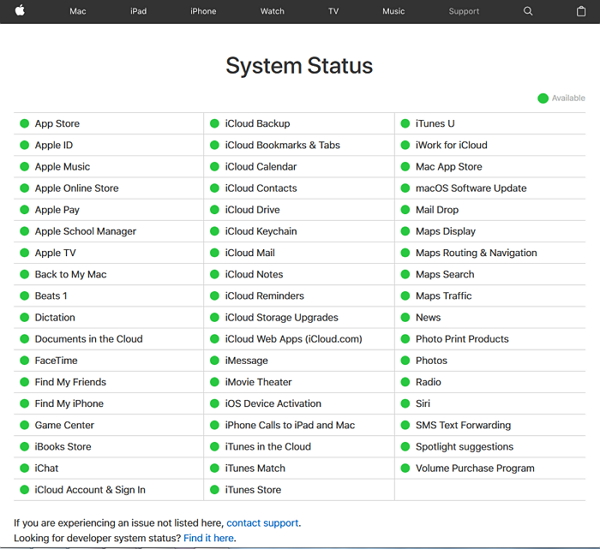
Tip 2: Check Apple System Status Page

Sometimes App Store server is down, then there will be the error code 1009. You can check if the server is down by visiting Apple system status page on their official website. If the App Store server is down for maintenance, you need to wait till it is up again and once it is up, you can try to download the app.


Tip 3: Check the Country You Set for App Store

Sometimes there are settings by the developer end that the application you wish to download is blocked in the particular country you are at the moment. To avoid the error 1009, you need to change the country on your iOS device. Follow these steps to change the country on your iPhone.

• Open Setting app =>iTunes&App Store. Then click on your Apple ID.

• Select View Apple ID on a pop-up menu that follows.

• Enter your Apple ID and password.

• On the Account screen, tap on Country/Region. Press on Change Country or Region and then select the desired country.

• Now tap “Next”

• Then tap Agree at the bottom of the screen, and after that, again a pop-up menu will appear.

• Now, hit agree and tap "Next" to finish the process.


By this way you can change the country in your iPhone settings, and then you can try to download the application again, and hopefully, you will be able to do so and if not, do not worry we have other solutions for you as well.
Tip 4: Check Time Zone

Make sure the time zone are correctly set on your phone. If the Time Zone is not set correctly on your iPhone, it can lead to error 1009. Make sure you set it properly everytime there is a change, for example, when you are traveling in another country. To set time-zone properly, Open Settings >> General >> Time. You can set it manually, simply turn off the "Set Automatically" feature and set it manually.


Tip 5: Check the Proxy Settings on Your iOS Devices

Another way is to check the proxy settings on your iOS device. Make sure proxy settings are properly set, or else you need to change them. You can change the proxy settings as follows:

• Open Settings from your iOS device home screen, and tap on Wi-Fi.

• Select the Wi-Fi network that you are using, and on the bottom of the screen, you will see HTTP Proxy settings.

• Now, choose Manual to configure the settings manually.

• Now hit Server and type the IP address, then tap "Port" as your provider shows it. Now check if you resolved your problem of error code 1009 on app store.


Tip 6: Check If Your IP Is Blocked

Whenever you try to purchase an application that is unavailable for your country, you will see this error 1009. Sometimes your IP address will be blocked so that the application is unavailable for your country. The solution is you can change the IP address for such apps. You can even use VPN service. Here we are going to tell you the steps to follow on your iPhone:

• Go to Settings >> General >> VPN.

• Now, tap on "Add VPN Configuration."

• Fill in the required boxes and check Off under the Proxy.


The VPN service is now activated on your iPhone, and this is your solution for error code 1009.

If in case, you tried all of these given solutions and still face the error code 1009, you can contact Apple or visit one of their physical stores. iPhone Error 1009 is a very common error that usually has nothing to do with the hardware of your iOS device. It is directly connected to software compatibility. The solutions shared above should work for you in getting the connection back to iTunes and apps should begin downloading, but in worst of the cases, Apple 's customer care or a visit to their physical store is your option too. Next time you see a message on the screen of your device, "Cannot process the request, error code 1009", you have so many solutions for this problem, all you need to do is to find out which one works for you.Sponsor ads:

Gihosoft Free iPhone Data Recovery:iphonerecovery.com

Free iPhone Data Recovery Software for Windows/Mac

Recover up to 12+ types of files, including contacts, SMS, photos, WhatsApp, Viber, notes, etc.

Restore lost data from iOS devices directly or from iTunes and iCloud backup

Recover iPhone data lost due to iOS upgrade/jailbreak, accidental deletion, device lost or broken

Support all the latest iPhone, iPad and iPod Touch

Both Free and Pro version.

If you lost data after you updated to a new iPhone, you can always use Gihosoft iPhone Data Recovery to get the data back from the old iPhone or backup.

Top 10 Best FRP Bypass Tools to Bypass Google Account on Android Device 2019

Worth reading:download youtube 1080p

If you use android phones, please choose Gihosoft Android Data Recovery

Jihosoft Android Data Recovery: the best Android Data Recovery software for Windows and Mac to recover deleted contacts, messages, photos, videos, WhatsApp and etc from Android

Tuesday, February 19, 2019

How to Use an iPhone Without a SIM Card 2019


Do you have an old iPhone that you only want to use for certain functions like FaceTime, Texting or Email and not for calling? If this is the case, you may very well have tried to use the device without a SIM card. If you are having issues doing this, please note that it is possible to use your iPhone like an iPod. This article will provide you with two ways you can use an iPhone without a SIM card. Keep reading to find out how.
1 Insert a Functioning SIM Card to Set Up

To begin with, it is necessary to erase all contents and settings from the device to get to the set-up screen. To do this go to Settings > General > Reset > Erase All Contents and Settings. Once this is done, you should be at the set-up screen.


When prompted, insert a functioning SIM card into the device. We only do this temporarily as a way to set up the device. Once the set-up is complete, you can simply remove the SIM card and proceed to use the iPhone as a WI-FI device only.


2 Activate the iPhone Using iTunes

If you have access to a computer, the best way to activate the device without a SIM would be through iTunes.

Step 1: Connect the iPhone to your computer using USB cables.

Step 2: Once you launch iTunes, you should see a prompt telling you want you need to do to activate the iPhone.


Of course, unless it’s a new device you will still need to erase all contents and settings on the device to reset it to factory settings before doing this.


Tip: How to Back up your iPhone

You always need a backup for the data on your iPhone whether you are using it with a SIM card or as Wi-Fi only device. While iCloud and iTunes may be great backup solutions, there is a new, easier way to back up all the data on your device. This new solution is iMyFone D-Port, a program that allows users to selectively export 20+ types of data from an iPhone to the computer. Some of its features include.Sponsor ads:

Gihosoft Free iPhone Data Recovery:iphonerecovery.com

Free iPhone Data Recovery Software for Windows/Mac

Recover up to 12+ types of files, including contacts, SMS, photos, WhatsApp, Viber, notes, etc.

Restore lost data from iOS devices directly or from iTunes and iCloud backup

Recover iPhone data lost due to iOS upgrade/jailbreak, accidental deletion, device lost or broken

Support all the latest iPhone, iPad and iPod Touch

Both Free and Pro version.

If you lost data after you updated to a new iPhone, you can always use Gihosoft iPhone Data Recovery to get the data back from the old iPhone or backup.

Top 10 Best FRP Bypass Tools to Bypass Google Account on Android Device 2019

Worth reading:download youtube 1080p

If you use android phones, please choose Gihosoft Android Data Recovery

Jihosoft Android Data Recovery: the best Android Data Recovery software for Windows and Mac to recover deleted contacts, messages, photos, videos, WhatsApp and etc from Android

How to Extract Music from iPod Manually with iTunes


How to Extract Music from iPod Manually with iTunes

Of course, you always have iTunes to extract music from iPod. Though it’s not recommended, you can do this by following these steps:

For PC


Open iTunes and plug in your iPod.


Go to “Edit”, then “Preferences”, and then“Devices”.


Look for the box that says “Prevent iPods, iPhones and iPads from syncing automatically”, and tick it.


Open "Computer" and you will see your iPod is shown as a disk.


Tap "Tools > Folder option > Show hidden files and folders" on ribbon and then hit "Ok".


Go into the disk of your iPod and open "iPod-Control". Find the music folder and copy it to desktop.


Go to "Edit > Preferences > Advanced" on iTunes. Tick "Keep iTunes music folder organized" and "Copy files to iTunes music folder when adding to library".


Go to "File > Add to library". Choose the music folder from the desktop and add it to iTunes library.


For Mac


Open iTunes. Connect your iPod to Mac.


Click "iTunes > Preferences > Devices". Check "Prevent iPods, iPhones and iPads from syncing automatically".


Open "Terminal" in "Applications/Utilities". (You can use the spotlight to search "applications".)


Type "defaults write com.apple.finder AppleShowAllFiles TRUE" and killall Finder". Then press reture key.


Double-click on your iPod icon and open "iPod Control" folder to find the music folder. Copy it to desktop.


Follow the Step 7 & 8 in "For PC" to add the music folder to iTunes library.


Now, there are a lot of inherent limitations in using iTunes to extract music from iPod. These limitations and problems include:


iTunes only has unidirectional transmission, and it tends to write over your data, so your original data isn’t left.


You can only sync your iPod to one iTunes library.


You can’t select individual files for transferring, you can only sync.


You are limited to sharing data with 5 devices.


It only supports purchased music.


You cannot transfer data directly from your computer to your iPod. To do so, you need to transfer data from computer to iTunes first and then iPod.Sponsor ads:


Gihosoft Free iPhone Data Recovery:iphonerecovery.com


Free iPhone Data Recovery Software for Windows/Mac


Recover up to 12+ types of files, including contacts, SMS, photos, WhatsApp, Viber, notes, etc.


Restore lost data from iOS devices directly or from iTunes and iCloud backup


Recover iPhone data lost due to iOS upgrade/jailbreak, accidental deletion, device lost or broken


Support all the latest iPhone, iPad and iPod Touch


Both Free and Pro version.


If you lost data after you updated to a new iPhone, you can always use Gihosoft iPhone Data Recovery to get the data back from the old iPhone or backup.


Top 10 Best FRP Bypass Tools to Bypass Google Account on Android Device 2019


Worth reading:download youtube 1080p


If you use android phones, please choose Gihosoft Android Data Recovery


Jihosoft Android Data Recovery: the best Android Data Recovery software for Windows and Mac to recover deleted contacts, messages, photos, videos, WhatsApp and etc from Android


Tuesday, February 12, 2019

Easy Fixes for iPad Screen Flickering Issue


Tip 1: Turn the iPad over and Press Its Back Side

The iPad Mini screen flickering may be due to some loose components inside. You can fix this problem and hopefully your iPad screen will stop flickering.

Take some hard surface and put a soft thick cloth over it. Remove any hard cases on your iPad and then switch it off. After this, place it with its screen facing the surface. Place the fingers of one of your hand over the iPad backside to keep it steady and with the other hand knock on the iPad surface several times everywhere. Be careful and avoid knocking on the area which has the camera.


Try switching on the iPad again and check if the flickering has stopped.
Tip 2: Turn off Auto-Brightness on iPad

iPad has the feature of adjusting the brightness on its screen according to the surrounding light. This feature is called as Auto-Brightness and when this is enabled your screen may appear to be flickering when the background light keeps changing but that might not be the case. You can switch off or disable this feature by following the steps below.

Step 1: From the main screen of your iPad, navigate and tap on “Settings”.

Step 2: Scroll through the options and then tap on “Accessibility”.

Step 3: From the available options under this section, select “Display Accommodations”.

Step 4: You can find Auto-Brightness option here, for which you just have to move the slider and disable it.


This would disable the feature and your screen light and brightness will remain constant.
Tip 3: Reduce Motion and Transparency

You can adjust the visual features of your iPad to get the necessary fix for the flickering screen of the iPad problem. These adjustments improve the performance of the iPad device to a large extent. You can make the adjustments by following the steps below.

Step 1: From the different options available on the main screen, tap on “Settings”.

Step 2: Proceed to tap on “General” and then on “Accessibility”.

Step 3: From here, select “Increase Contrast” option and move the slider in front of “Reduce Transparency” to enable it.

Step 4: Go back to the “Accessibility” options and move the slider in front of “Reduce Motion” to enable it.


This way even though these attractive features of display are reduced, the iPad screen flickering on and off will probably stop.
Tip 4: Hard Reset Your iPad

Generally a hard reset solves all the minor technical glitches in any device. Same is the case with iPad. However, the steps for hard reset of different models of iPad are different. The steps for both are given below.

For hard resetting older versions of iPad,

Step 1: Press the Home button and the Power button of iPad and keep holding it.

Step 2: You have to hold these buttons till the slider appears, screen goes blank and Apple logo appears on the screen.


For hard resetting iPad Pro 2018,

Step 1: In iPad Pro 2018, the Home button is absent, so the other buttons are used, press and quickly release both Volume Up and Down button simultaneously.

Step 2: After this, press the Power button and keep holding it till the reboot is initiated.


Check if the iPad screen keeps flickering continues.

Sponsor ads:

Gihosoft Free iPhone Data Recovery:https://www.gihosoft.com/iphone-data-recovery-free.html

Gihosoft iPhone Data Recovery Free

Free iPhone Data Recovery Software for Windows/Mac

Recover up to 12+ types of files, including contacts, SMS, photos, WhatsApp, Viber, notes, etc.

Restore lost data from iOS devices directly or from iTunes and iCloud backup

Recover iPhone data lost due to iOS upgrade/jailbreak, accidental deletion, device lost or broken

Support all the latest iPhone, iPad and iPod Touch

Both Free and Pro version.

If you lost data after you updated to a new iPhone, you can always use Gihosoft iPhone Data Recovery to get the data back from the old iPhone or backup.You may also like: iphonerecovery.com

If you use android phones, please choose Gihosoft Android Data Recovery.

With Gihosoft Android Data Recovery, no longer afraid of data loss!

Must read:Youtube video downloader for pc

Gihosoft RePicvid Free Photo Recovery Software provides a free photo recovery software for windows to help users recover the deleted or lost photo for free.

Jihosoft Android Data Recovery: the best Android Data Recovery software for Windows and Mac to recover deleted contacts, messages, photos, videos, WhatsApp and etc from Android devices.Tips:How to transfer messages from iPhone to iPhone

jihosoft Free iPhone Data Recovery

Saturday, February 2, 2019

How to Avoid Losing a Text Message Again 2019


How to Avoid Losing a Text Message Again
1. Backup Text Messages Regularly using iTunes

When you synchronize and backup your iPhone using iTunes, the text messages also back up. However, you cannot read or see the messages in the backup.

Step 1: Open iTunes on your computer and connect your iPhone. Click on the device button.

Step 2: Under the “Summary” tab, you will see the complete information related to your iPhone. In the similar tab, choose “Back Up Now” and click “Apply”.


The process will create a backup of your iPhone that also includes your text messages.


2. Backup text messages Regularly Using iCloud

Apple is providing you the chance to build back up in its iCloud. With this, you can backup files from anywhere and at any time. You can back up the entire phone or only the text messages and iMessages. You can perform the action directly on the phone.

Step 1: Make sure to turn on your Wi-Fi and connect your phone to the network.

Step 2: Make sure that iCloud Backup is “On”. To do this in iOS 8 or later, tap Settings – iCloud – Backup. For iOS 7 or earlier, tap Settings – iCloud – Storage & Backup.

Step 3: Tap “Back Up Now” to begin creating a backup.


Losing valuable information contained in the text messages is frustrating and bothersome. A better way to avoid unforeseen actions is by creating a backup. You can also retrieve the deleted messages as stated above usingSponsor ads:

Gihosoft Free iPhone Data Recovery:https://www.gihosoft.com/iphone-data-recovery-free.html

Gihosoft iPhone Data Recovery Free

Free iPhone Data Recovery Software for Windows/Mac

Recover up to 12+ types of files, including contacts, SMS, photos, WhatsApp, Viber, notes, etc.

Restore lost data from iOS devices directly or from iTunes and iCloud backup

Recover iPhone data lost due to iOS upgrade/jailbreak, accidental deletion, device lost or broken

Support all the latest iPhone, iPad and iPod Touch

Both Free and Pro version.

If you lost data after you updated to a new iPhone, you can always use Gihosoft iPhone Data Recovery to get the data back from the old iPhone or backup.You may also like: iphonerecovery.com

If you use android phones, please choose Gihosoft Android Data Recovery.

With Gihosoft Android Data Recovery, no longer afraid of data loss!

Must read:Youtube video downloader for pc

Gihosoft RePicvid Free Photo Recovery Software provides a free photo recovery software for windows to help users recover the deleted or lost photo for free.

Jihosoft Android Data Recovery: the best Android Data Recovery software for Windows and Mac to recover deleted contacts, messages, photos, videos, WhatsApp and etc from Android devices.Tips:How to transfer messages from iPhone to iPhone

jihosoft Free iPhone Data Recovery

Best-mini-gaming-pc-builds 2023

 B est-mini-gaming-pc-builds 2023 Building a mini gaming PC can be a great way to save space without sacrificing performance. Here are some ...