Thursday, March 21, 2019

Apple ID Locked for Security Reasons, What to Do Now?


Apple, in a bid to create a safe user space, enhances security on their iPhones by suspending the account and locking out the device owners. If this happens to you, don’t panic. Here’s what to do.
Follow This Guide If Your Apple ID Locked for Security Reasons
If an iPhone gets stolen, for example, and the thief attempts to unlock it. Inputting wrong passwords too many times or fail the security question, Apple will lock the Apple ID associated with the stolen iPhone, as the multiple wrong passwords trigger Apple to mark this iPhone as compromised.
A scenario of this is if you are out to purchase a second-hand iPhone. After a good search, you find the iPhone, thankfully. Only one little problem - the Apple ID is locked. We’ll show you what to do here.

2. Recover It When Your Apple ID has been Disabled for Security Reasons

The process above removes any iPhone from any association with any Apple ID account. Your iPhone is now clear of any Apple ID account. You can then add another Apple ID account to the iPhone, open a new one, or recover the old one.

To recover your old Apple ID, you have to visit Apple’s password help and recovery site . Alternatively, you could just hit the “Tap to Unlock” button on the notification alert. The next step differs based on whether you have account security or not. Accounts are secured using either a two-step or two-factor verification.
If You Don’t Have Any Account Security

The only time it is advantageous to not have any account security for your account is when you're looking to recover your Apple ID. All you need to do to authenticate and retrieve your account is to input your existing password.

You may be asked some of your security questions, answer them and continue.
If You Have Two-factor Authentication

For added security, if you are trying to unlock your iPhone, and your iPhone has two-factor authentication, here is how to go about it.

Apple will either send to one of your trusted devices a message containing a login code. You can also opt to get this message on the primary device of the Apple ID account.


If You Have Two-step Verification

The two-factor verification is more secure than the two-step verification, and so, two-step verification has been stopped for newer iPhones. If your iPhone has two-step verification and Apple has sent you a 14-digit code when you set up the security, you have to input it with a code sent to a trusted device. Otherwise, you might not be able to login into your account.


What Causes Apple ID Locked for Security Reasons?

Your Apple ID is the email address and password that enable you to access Apple services, such as FaceTime, iMessage, Apple Music, App Store, iCloud, and much others. It contains other valuable information about you, like payment options, security details, etc., so the Apple ID is undoubtedly very personal.
Why Exactly Does Apple Lock Apple ID?

Imply put, Apple locks IDs that they think have been compromised. Various things can lead Apple to flag an ID as compromised; some more obvious examples are when a wrong password is inputted too many times. However, more things trigger the locking of Apple ID accounts. Some of these include:


Attempting to access iCloud data using multiple tools on the same account, over a short time.


Also, using third-party tools based on open source iCloud tools.

Note: Emails with the title “Your Apple ID Locked for Security Reasons” are not from Apple, they might be scams. They only lure you into inputting your Apple ID account login; if you fall for them, they will compromise your Apple ID account.

Apple users should never click on any link to sign in, in their emails. If you ever receive any warning email, visit https://appleid.apple.com/ and sign in from there. If there really is a problem with your account, you will be alerted there.
Tips on Keeping Your Account Secure

You can protect your Apple ID by the following recommended tips according to Apple:


Always use a strong password for your Apple ID.


Use difficult-to-guess answers in your security questions.


Use two-factor authentication.


Never use the same password for Apple ID and other websites.


Change your Apple ID password constantly and try not to reuse old passwords.
Conclusion

We assured you not to panic if Apple ID locked for security reasons; after reading this guide, you now know why. In the past, whenever it happened, most times, it meant that the iPhone became unusable. But thanks to LockWiper, you can now unlock your device and recover your iPhone ID account.
Also Read:4 Best iOS Cleaner Apps to Clear Junk on iPhone/iPad in 2019
Also Read:7 Best Free Parental Control Apps for Android to Keep Your Kids Safe
Also Read:Top 5 Best Torrent Websites – YIFY Alternative Sites 2019

Also Read:Top 8 Best Alternative Websites to TamilGun in 2019
Also Read:4 Easy Ways To Know if Your iPhone Is Locked Or Unlocked

Also Read:Download Korean Drama for Free 2019Also Read:5 Best Free Internet Download Manager IDM Alternatives to Check Out

Friday, March 15, 2019

How to Transfer Notes from Apple Notes to Google Keep

Transfer Apple Notes to Google Keep Featured
Done with Apple Notes and looking for a way out? You can try Google’s excellent note-taking app, Google Keep. It’s now a robust notetaking service available everywhere from the web, Chrome, Android to iOS. Here’s how to transfer your notes from Apple Notes to Google Keep.
Apple Notes makes it extremely difficult to export notes. And Google hasn’t created an automatic importer. This means you’ll have to manually import notes from Apple Notes to Google Keep. One by one.

How to Transfer Apple Notes to Google Keep Using The App

The official way to do this is by using the Google Keep app. It’s a workaround, but basically, you use the share extension to transfer notes from Apple Notes to Google Keep.
Step 1: Open a note from the Notes app after installing the Google Keep app on your iPhone.
Transfer Apple Notes to Google Keep 1
Step 2: Tap on the Share button. Here, swipe all the way to the end, tap on More and enable the Google Keep extension.
Transfer Apple Notes to Google Keep 2
Step 3: Select the Google Keep extension. You’ll see a popup. Here you can choose which account to add the note to. And then tap on Post. The note will now be added to your Google Keep account.
Transfer Apple Notes to Google Keep 3
Follow the same process for all the notes you want to transfer from Apple Notes to Google Notes.

How to Sync Apple Notes to Gmail

There’s a setting that lets you use Google as the syncing engine for notes in Apple Notes. This doesn’t mean all your notes show up in Google Keep automatically. They can merely be seen from Gmail app and you can then copy/paste to Google Keep manually.
Transfer Apple Notes to Google Keep 7
There are a couple of caveats involved. Even after you enable Google as a source for Apple Notes app, it doesn’t actually start syncing all the notes from your iCloud account. It will only sync notes that are in the Gmail folder. To make matters worse, I couldn’t find a way to move notes from iCloud folder to Gmail folder.
Transfer Apple Notes to Google Keep 4
So this is what the workflow would look like:
  1. Manually copy text from a note in the iCloud folder.
  2. Create a new note in the Gmail folder and paste the text.
  3. Open the Gmail app or Gmail website and find the Notes label.
  4. Open the note in the label.
  5. Manually paste the text in a Google Note on the web.
This route is also manual. The bright side is that you can do some batch processing. And you can paste the text in Google Keep using your computer, which makes things faster.
To set this system up, follow the instructions:
Step 1: Open Settings on your iPhone and go to Accounts & Passwords.
Step 2: If you haven’t already, add your Gmail account.
Transfer Apple Notes to Google Keep 5
Step 3: Then select your Google account and turn on the Notes syncing feature.
Step 4: You can make the Gmail your default account. To do that open Notes section in Settings and tap on Default Account. Now select Gmail.
Transfer Apple Notes to Google Keep 6

Your Favorite Note Taking System?

Do you prefer Apple Notes or Google Keep? Or do you use Evernote? Share with us in the comments below.Also Read:jihosoft Free iPhone Data Recovery
Sponsor ads:
Gihosoft iPhone Data Recovery Free
Free iPhone Data Recovery Software for Windows/Mac
Recover up to 12+ types of files, including contacts, SMS, photos, WhatsApp, Viber, notes, etc.
Restore lost data from iOS devices directly or from iTunes and iCloud backup
Recover iPhone data lost due to iOS upgrade/jailbreak, accidental deletion, device lost or broken
Support all the latest iPhone, iPad and iPod Touch
Both Free and Pro version.
If you lost data after you updated to a new iPhone, you can always use Gihosoft iPhone Data Recovery to get the data back from the old iPhone or backup.You may also like: iphonerecovery.com
If you use android phones, please choose Gihosoft Android Data Recovery.
With Gihosoft Android Data Recovery, no longer afraid of data loss!
Gihosoft RePicvid Free Photo Recovery Software provides a free photo recovery software for windows to help users recover the deleted or lost photo for free.
Jihosoft Android Data Recovery: the best Android Data Recovery software for Windows and Mac to recover deleted contacts, messages, photos, videos, WhatsApp and etc from Android devices.Tips:How to transfer messages from iPhone to iPhone
Jihosoft File Recovery:Recover deleted, Lost, formatted, or corrupted files from PC, flash drive and memory card easily & safely

Friday, March 8, 2019

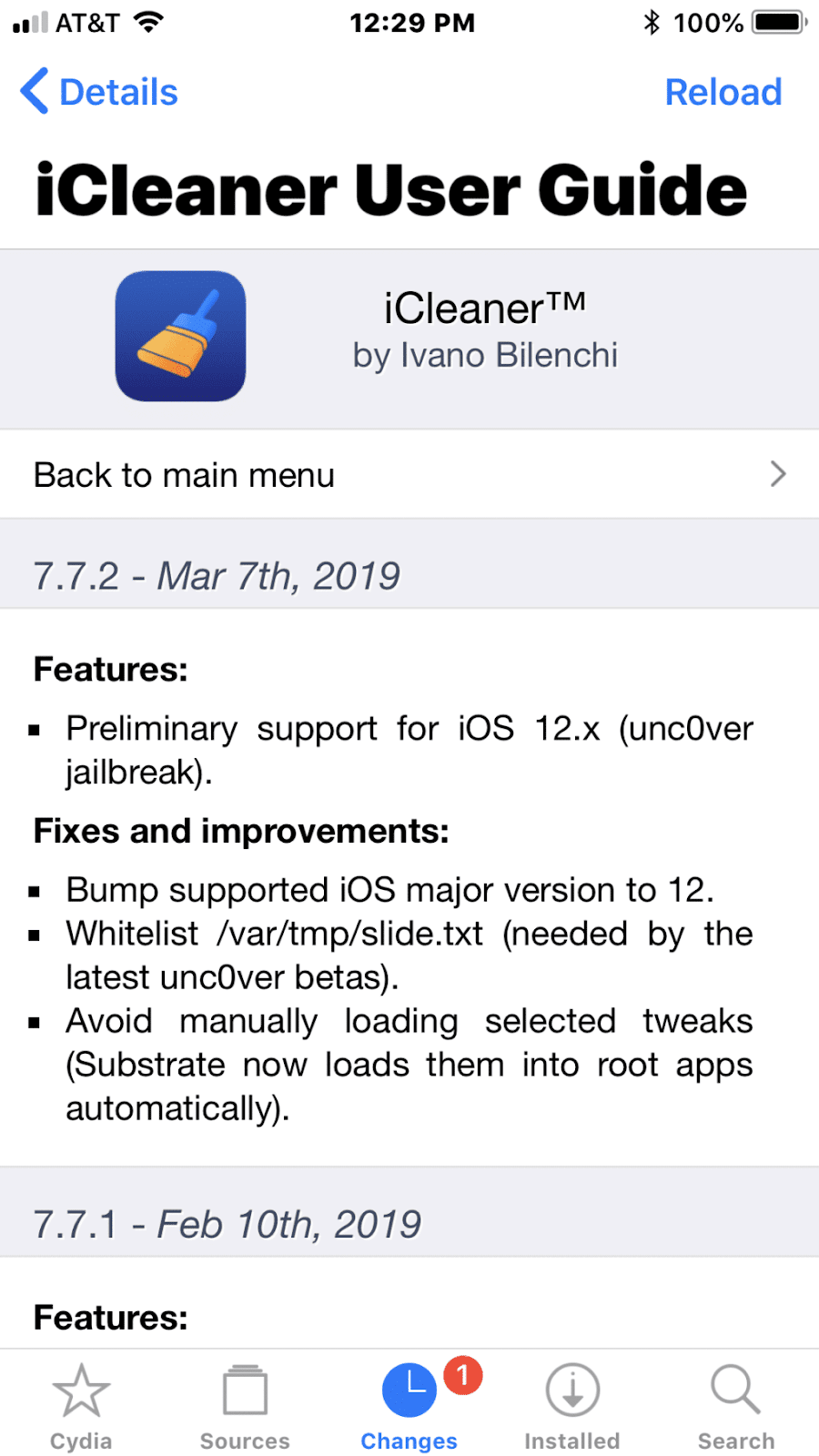
iCleaner Pro, a CleanMyMac-like Jailbreak Tweak, Gains iOS 12 Support


iCleaner Pro, one of the best jailbreak tweaks around, has been updated with iOS 12 support. While the tweak already used to work under iOS 12, it used to throw an error every time one tried using it. The latest update (v7.7.2) adds preliminary support for iOS 12.x and Unc0ver jailbreak solving this issue for good.

If you are aware of iCleaner Pro, it is a CleanMyMac-like tool for your jailbroken iPhone or iPad. You can use it to quickly free up clutter from your iPhone and reclaim gigabytes of lost space. It does so by removing unnecessary files like unused languages, keyboards, voice control languages etc. If you keep running out of storage space on your iPhone or iPad, this tweak will help make your life easier.


Right now, the tweak still offers beta support for iOS 12, though you are unlikely to run into any issues with it.

iCleaner Pro is among the oldest and popular jailbreak tweaks so if you are new to the jailbreaking scene, make sure to try it out. You can also check out our list of the best Cydia jailbreak tweaks for iOS 12 – iOS 12.1.2 for more amazing jailbreak tweaks.Also Read:jihosoft Free iPhone Data Recovery

Sponsor ads:

Gihosoft Free iPhone Data Recovery:https://www.gihosoft.com/iphone-data-recovery-free.html

Gihosoft iPhone Data Recovery Free

Free iPhone Data Recovery Software for Windows/Mac

Recover up to 12+ types of files, including contacts, SMS, photos, WhatsApp, Viber, notes, etc.

Restore lost data from iOS devices directly or from iTunes and iCloud backup

Recover iPhone data lost due to iOS upgrade/jailbreak, accidental deletion, device lost or broken

Support all the latest iPhone, iPad and iPod Touch

Both Free and Pro version.

If you lost data after you updated to a new iPhone, you can always use Gihosoft iPhone Data Recovery to get the data back from the old iPhone or backup.You may also like: iphonerecovery.com

If you use android phones, please choose Gihosoft Android Data Recovery.

With Gihosoft Android Data Recovery, no longer afraid of data loss!

Must read:Youtube video downloader for pc

Gihosoft RePicvid Free Photo Recovery Software provides a free photo recovery software for windows to help users recover the deleted or lost photo for free.

Jihosoft Android Data Recovery: the best Android Data Recovery software for Windows and Mac to recover deleted contacts, messages, photos, videos, WhatsApp and etc from Android devices.Tips:How to transfer messages from iPhone to iPhone Jihosoft File Recovery:Recover deleted, Lost, formatted, or corrupted files from PC, flash drive and memory card easily & safely

You can get the latest version of iCleaner Pro with iOS 12 support from its official repo.

Like this post? Share it!Also Read:How to Fix Windows was Unable to Format SD Card/USB Drive
Also Read:SWF to MOV – How to Convert Flash SWF to MOV
Also Read:Whatsapp Text Tricks: Type Bold, Italics & Strikethrough WhatsApp Texts on iPhone
Also Read:How to Recover Deleted Photos from Samsung Galaxy Note


Also Read:Top 8 Best Alternative Websites to MamaHD 2019

Best-mini-gaming-pc-builds 2023

 B est-mini-gaming-pc-builds 2023 Building a mini gaming PC can be a great way to save space without sacrificing performance. Here are some ...